
 WordPress Installation Guide
Oracle Cloud (Always Free) | Ubuntu 20.04 | Apache | MySQL | PHP
 Prerequisites
Make sure the following are already installed and working:
 Ubuntu 20.04 on Oracle Cloud Always Free VM
- Apache Web Server
- MySQL Server
- PHP
- phpMyAdmin (optional but recommended)
- Port 80 open (UFW + Oracle Security List)
If your site opens at:
http://YOUR_PUBLIC_IP
You are ready to install WordPress.
STEP  Create a MySQL Database for WordPress
Login to MySQL:
sudo mysql
Run the following commands:
CREATE DATABASE wordpress;
CREATE USER 'wpuser'@'localhost' IDENTIFIED BY 'StrongPassword@123';
GRANT ALL PRIVILEGES ON wordpress.* TO 'wpuser'@'localhost';
FLUSH PRIVILEGES;
EXIT;
 Note these details (you will need them later):
- Database Name:
wordpress - Username:
wpuser - Password:
StrongPassword@123 - Host:
localhost
STEP  Download WordPress
Go to /tmp directory:
cd /tmp
Download WordPress:
wget https://wordpress.org/latest.tar.gz
Extract files:
tar -xvzf latest.tar.gz
STEP  Move WordPress to Web Directory
Remove default Apache files:
sudo rm -rf /var/www/html/*
Move WordPress files:
sudo cp -R wordpress/* /var/www/html/
Set correct ownership:
sudo chown -R www-data:www-data /var/www/html/
Set permissions:
sudo chmod -R 755 /var/www/html/
STEP  Configure WordPress (wp-config.php)
Go to web directory:
cd /var/www/html
Copy sample config file:
sudo cp wp-config-sample.php wp-config.php
Edit configuration:
sudo nano wp-config.php
Update these lines:
define('DB_NAME', 'wordpress');
define('DB_USER', 'wpuser');
define('DB_PASSWORD', 'StrongPassword@123');
define('DB_HOST', 'localhost');
Save and exit:
- CTRL + O → Enter
- CTRL + X
STEP  Enable Apache Rewrite Module
sudo a2enmod rewrite
sudo systemctl restart apache2
(Optional but recommended)
Edit Apache config:
sudo nano /etc/apache2/apache2.conf
Ensure this exists:
<Directory /var/www/html/>
    AllowOverride All
</Directory>
Restart Apache again:
sudo systemctl restart apache2
STEP  Run WordPress Web Installer
Open browser:
http://YOUR_PUBLIC_IP
You will see the WordPress Installation Screen.


Fill details:
- Site Title
- Admin Username
- Password (strong)
- Email Address
Click Install WordPress 
STEP  Login to WordPress Admin
Admin URL:
http://YOUR_PUBLIC_IP/wp-admin
Login using the admin credentials you created.
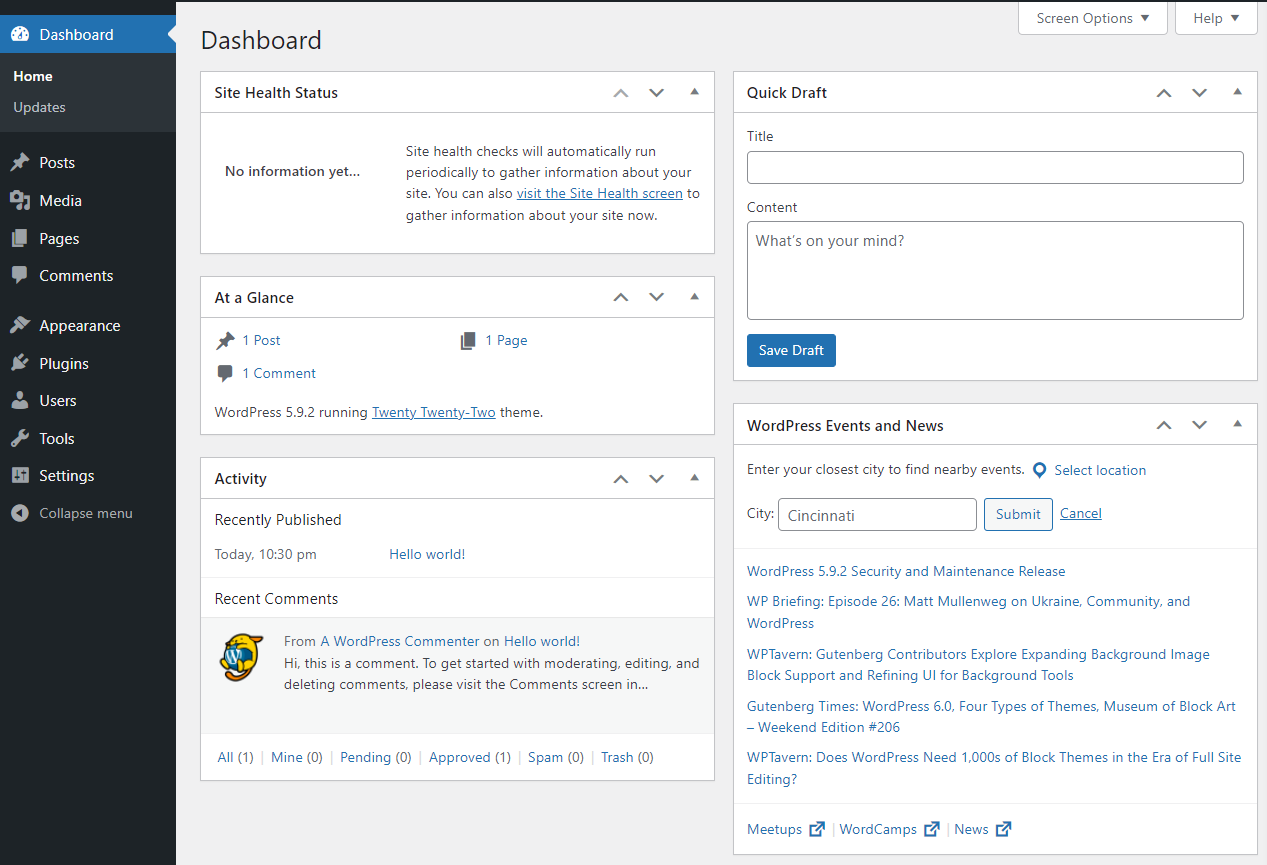
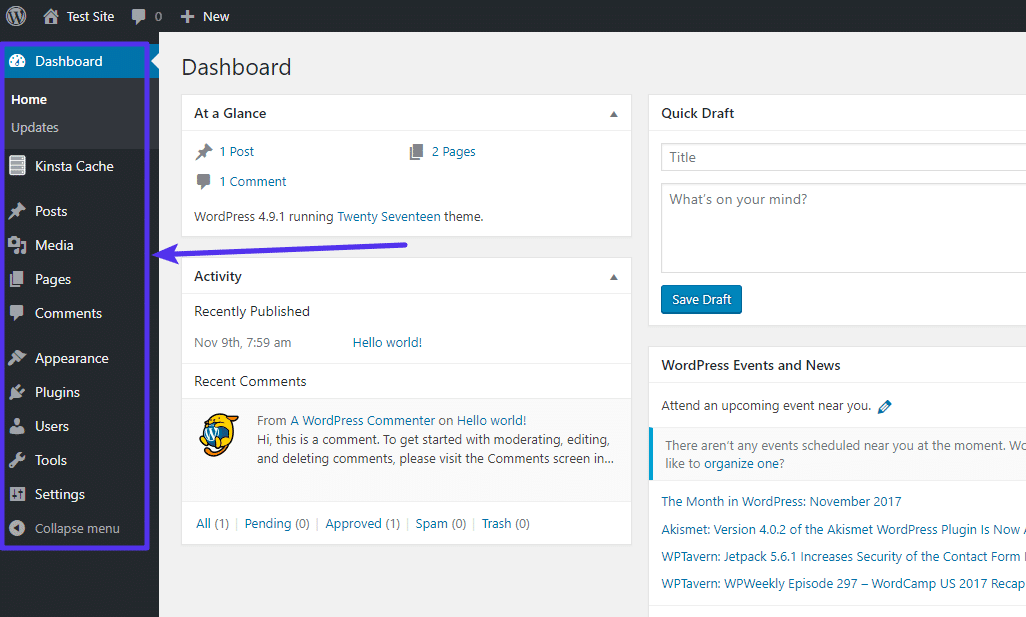
 WordPress is now successfully installed!
STEP  (Recommended) Secure WordPress
Remove installation files
sudo rm /var/www/html/readme.html
Disable directory listing
sudo nano /etc/apache2/apache2.conf
Ensure:
Options -Indexes
Restart Apache:
sudo systemctl restart apache2
STEP  (Optional) Install SSL (HTTPS – Free)
You can later secure your site with Let’s Encrypt SSL using Certbot.
 I can provide a full SSL installation guide if you want.
WordPress Installation Completed
You now have:
- WordPress CMS
- MySQL Database
- Apache + PHP
- Ready for themes, plugins & content