
Below is a start-to-finish, practical guide to install a LAMP Stack (Linux, Apache, MySQL, PHP) on Oracle Cloud Always Free using Ubuntu 24.04 LTS.
This is written so you can follow it without guessing—ideal for WordPress, blogs, PHP apps, or learning servers.
🚀 What You’ll Build
-
Oracle Cloud Always Free VM
-
Ubuntu 24.04 LTS
-
Apache 2
-
MySQL 8
-
PHP 8.3
-
Optional: phpMyAdmin
-
Firewall + security best practices
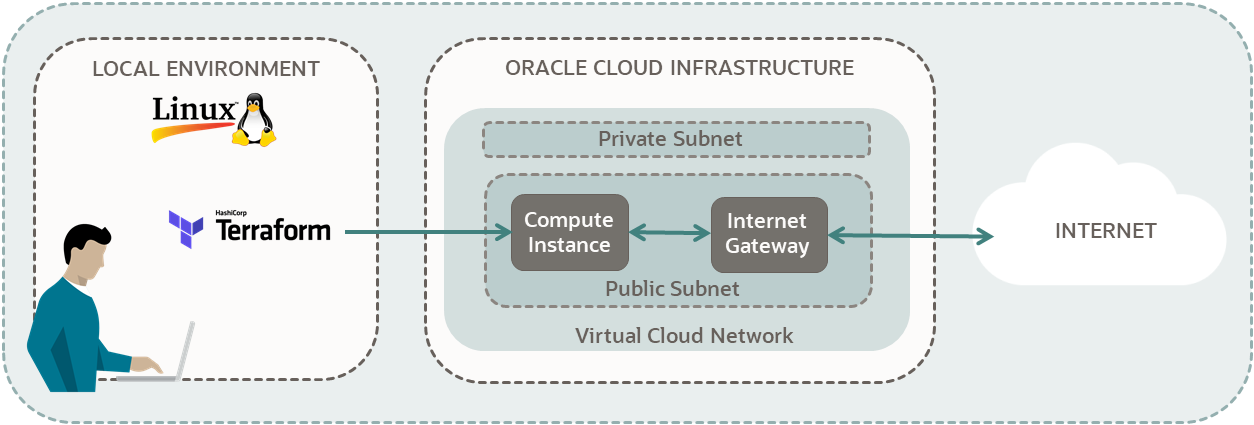
🧱 Architecture Overview


1️⃣ Create Oracle Cloud Always Free Instance
🔹 Sign up / Login
Go to Oracle Cloud Console
🔹 Create Compute Instance
Menu → Compute → Instances → Create instance
Recommended settings:
| Setting | Value |
|---|---|
| Image | Ubuntu 24.04 LTS |
| Shape | VM.Standard.E2.1.Micro (Always Free) |
| OCPU | 1 |
| RAM | 1 GB |
| Boot Volume | 50 GB (Free limit) |
| Networking | Public IPv4 enabled |
| SSH | Generate key pair (download .pem) |
📌 Save the private key carefully


2️⃣ Open Required Ports (VERY IMPORTANT)
🔹 In Oracle Cloud Network
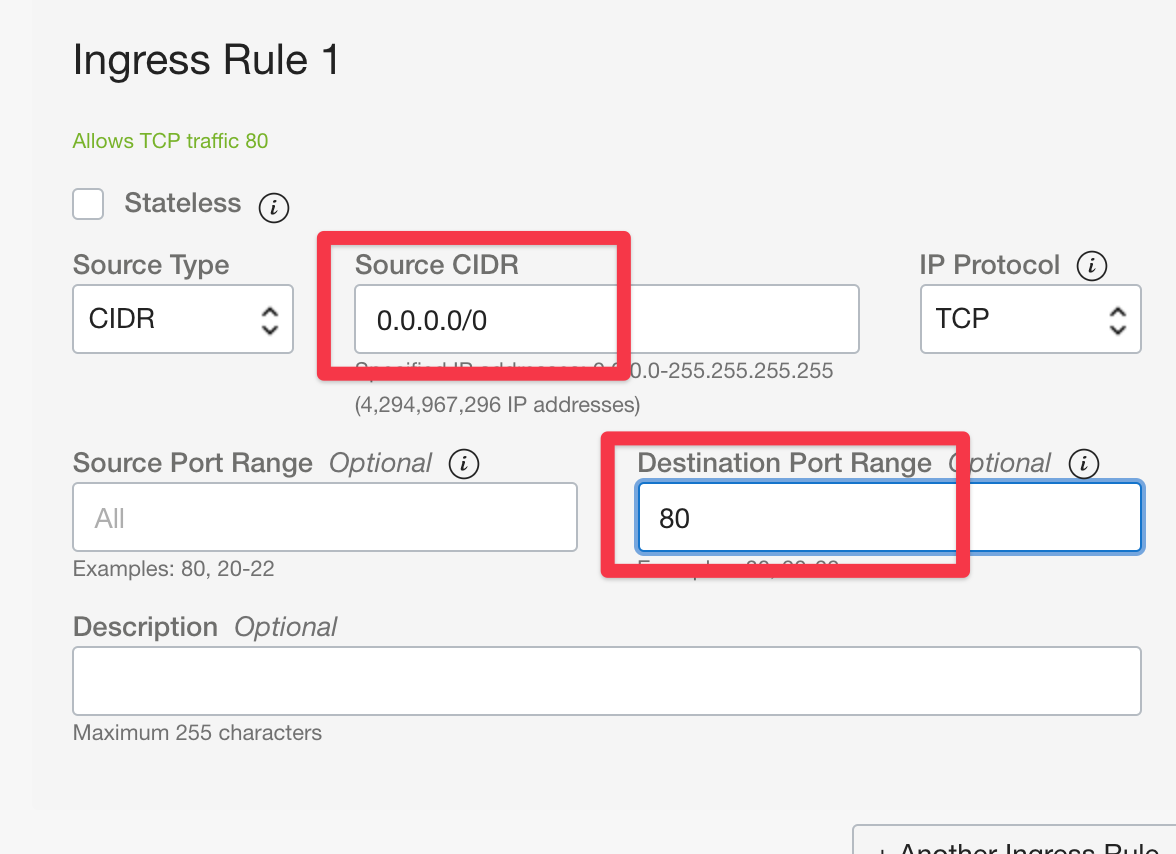
VCN → Subnet → Security List → Ingress Rules
Add:
| Port | Protocol | Source |
|---|---|---|
| 22 | TCP | 0.0.0.0/0 |
| 80 | TCP | 0.0.0.0/0 |
| 443 | TCP | 0.0.0.0/0 |

3️⃣ SSH Login to Server
🖥️ From Windows (PowerShell / CMD)
🖥️ From Linux / macOS
✅ You should see:
4️⃣ Update System (MANDATORY)
Reconnect after reboot.
5️⃣ Install Apache Web Server
✅ Test Apache
Open browser:
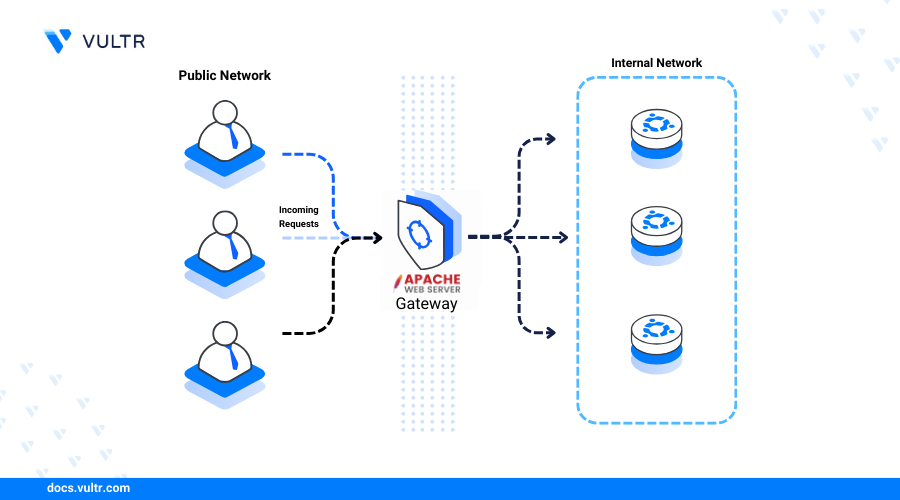
You should see Apache Ubuntu Default Page

✅ Fix: Install and Enable UFW (Recommended)
1️⃣ Install UFW
2️⃣ Allow required services
(Optional explicit ports)
3️⃣ Enable UFW
Type y and press Enter
4️⃣ Verify status
You should see:
✅ Confirm Apache is Working
Then open in browser:
then
Update System (MANDATORY)
You should see the Apache Ubuntu Default Page.
6️⃣ Enable Firewall (UFW)
Expected output:
7️⃣ Install MySQL Server
🔐 Secure MySQL
Recommended answers:
-
VALIDATE PASSWORD: No (Remove Password Extension)
-
Level: Medium
-
Root password: Strong
-
Remove anonymous users: Yes
-
Disallow remote root login: Yes
-
Remove test DB: Yes
-
Reload privileges: Yes
8️⃣ Create Database & User (Example)
9️⃣ Install PHP 8.3 (Recommended for Ubuntu 24.04)
🔄 Restart Apache
🔟 Test PHP Working
Paste:
Save → Open browser:
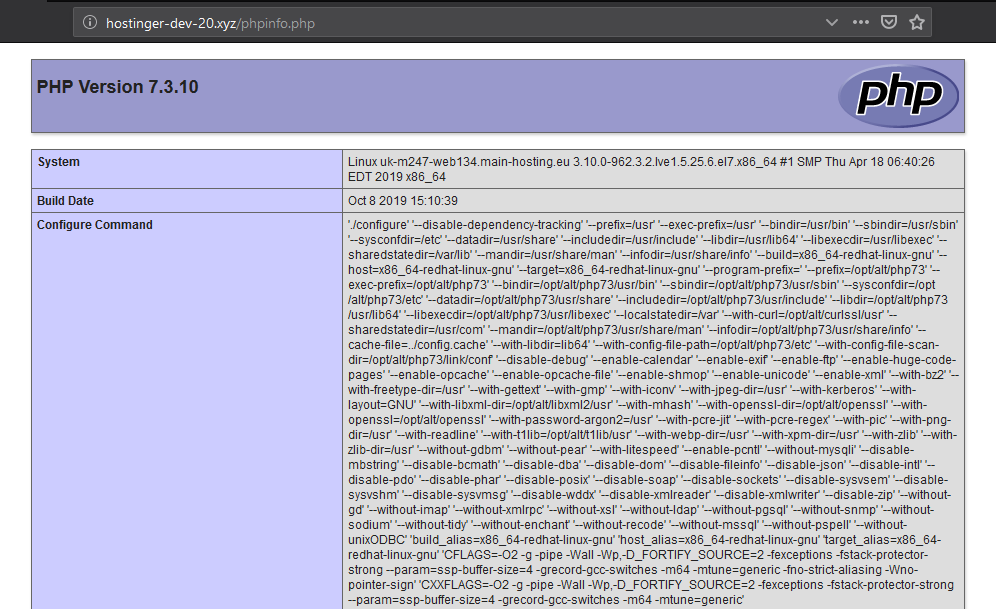

✅ PHP is working
⚠️ Delete after testing
1️⃣1️⃣ Fix Permissions (IMPORTANT)
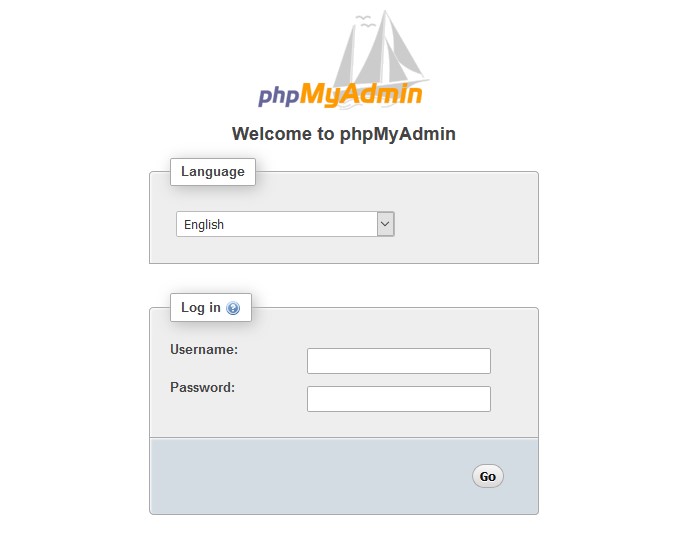
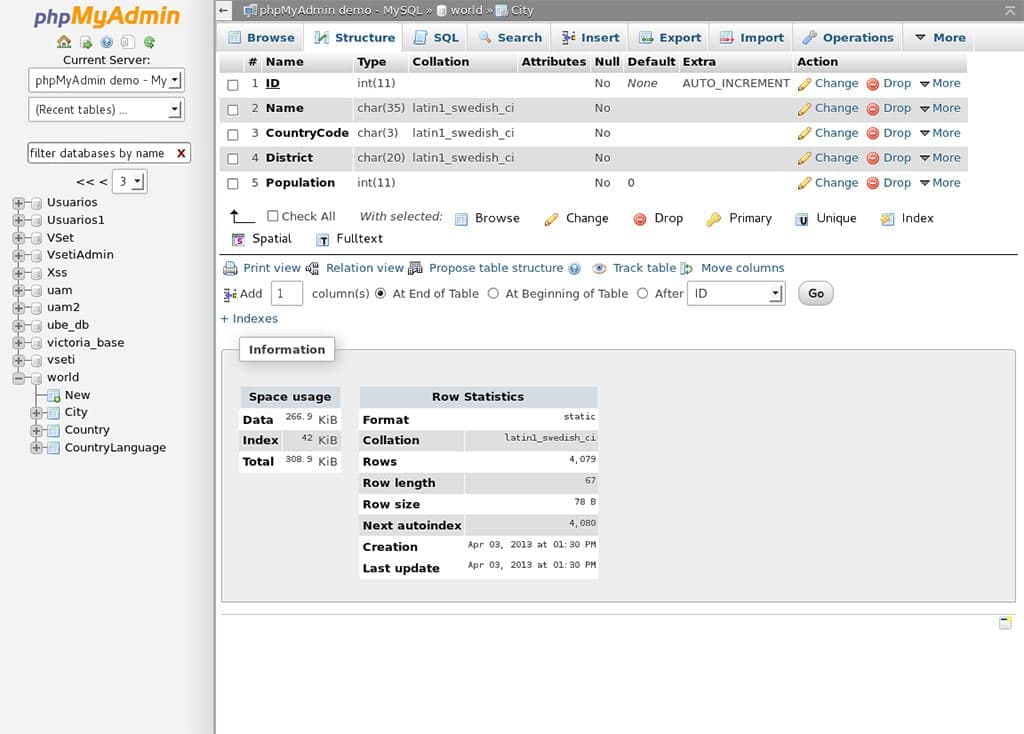
1️⃣2️⃣ Install phpMyAdmin (Optional)
Selections:
-
✔ Apache2
-
✔ Yes to dbconfig
-
Set phpMyAdmin password
Enable phpMyAdmin
Open:
1️⃣3️⃣ Enable Apache on Boot
Both should be active (running)
🔐 Security Best Practices (Recommended)
Disable Apache version info:
Set:
Restart Apache:
📌 Final Checklist
| Component | Status |
|---|---|
| Ubuntu 24.04 | ✅ |
| Apache | ✅ |
| MySQL | ✅ |
| PHP 8.3 | ✅ |
| Firewall | ✅ |
| Always Free | ✅ |
1️⃣ Check who you are logged in as
Usually it is:
2️⃣ Fix ownership (Apache uses www-data)
Run exactly this:
3️⃣ Fix directory & file permissions
4️⃣ Now edit the file using sudo
✅ This WILL open without “permission denied”
Save with:
🔁 Alternative (If you want ubuntu user to edit without sudo)
⚠️ Use this only for personal servers
Now you can edit without sudo:
❌ What NOT to Do
❌ Do NOT use:
This is unsafe and insecure.
🧪 Verify Fix
Expected output:
or
🔍 If Error Still Comes
Run and paste output:
I’ll tell you exactly what to fix next.
✅ Summary
✔ Error reason: ownership mismatch
✔ Correct fix: chown + chmod
✔ Safe for Apache + Ubuntu
✔ Works on Oracle Cloud Always Free
🔴 Why FileZilla Shows “Permission Denied”
-
You connect as user: ubuntu
-
Folder owner: www-data
-
FileZilla cannot use sudo
-
Result ❌ upload / edit fails
✅ FIX 1 (BEST & SAFE) – Give ubuntu user access
🔹 Run these commands once in SSH
🔹 Verify
Expected:
✅ Now FileZilla WILL work
🔐 FIX 2 – Add ubuntu user to www-data group (Recommended)
⚠️ Logout & login again
Reconnect SSH, then:
You should see:
📁 FileZilla Correct Settings (IMPORTANT)
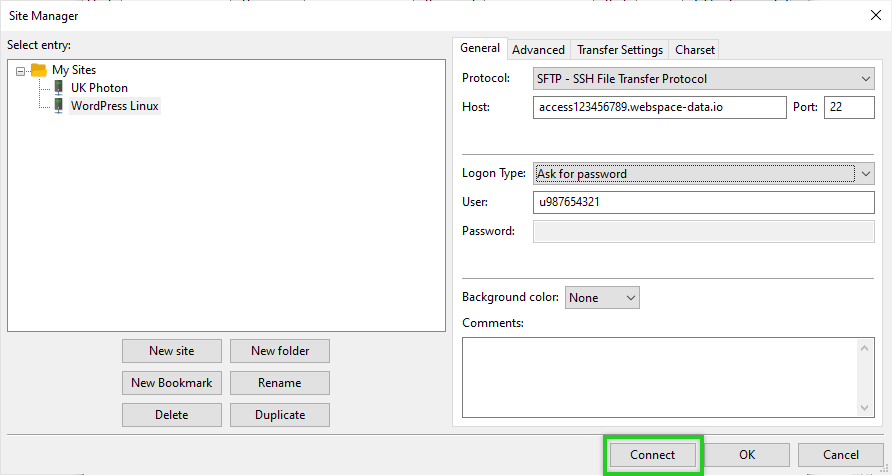
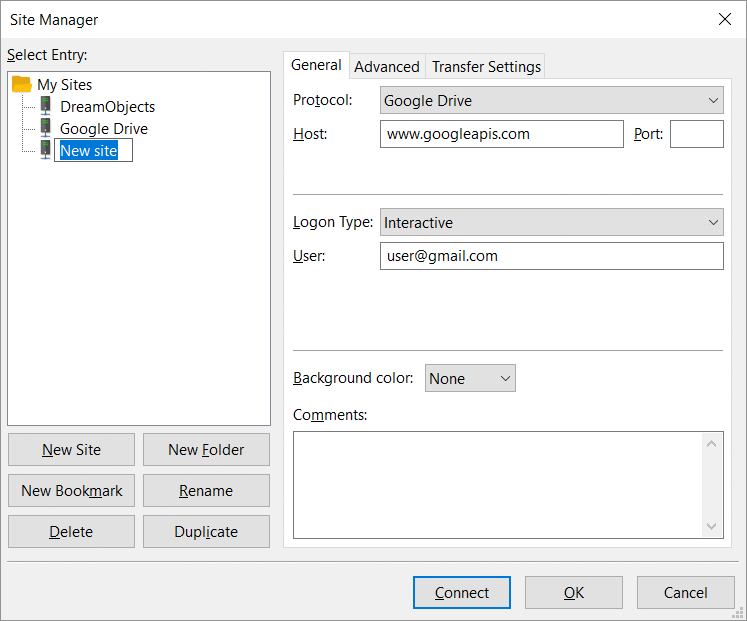

🔹 Site Manager Settings
| Setting | Value |
|---|---|
| Protocol | SFTP |
| Host | PUBLIC_IP |
| Username | ubuntu |
| Port | 22 |
| Logon Type | Key file |
| Key file | your .pem key |
📌 If .pem not accepted → FileZilla will auto-convert to .ppk
🧪 Test in FileZilla
Try uploading a file to:
✅ It should upload without error
❌ DO NOT DO THIS
❌ Security risk
❌ Anyone can write files
🧰 If Still Permission Denied (Rare Case)
Run:
✅ Final Checklist
✔ Ownership fixed
✔ Group access enabled
✔ FileZilla SFTP correct
✔ Apache still secure